![Vase Logo-4.png]](https://knowledge.vase.ai/hs-fs/hubfs/Vase%20Logo-4.png?height=40&name=Vase%20Logo-4.png)
Step 1: Visit the YayText Website 🌐
-
Open your browser.
-
Go to: https://yaytext.com/
-
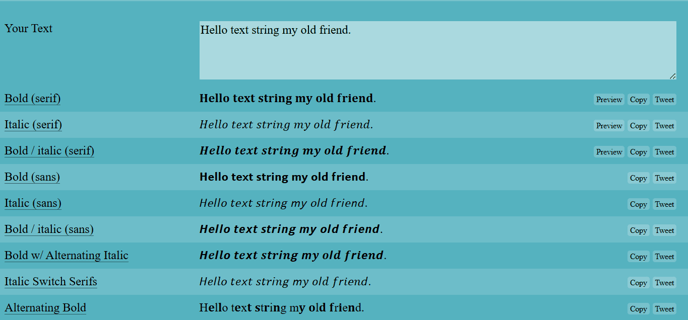
You will see a main text input box at the top, followed by a list of styling options.
Step 2: Type or Paste the Text You Want to Style ✍️
-
Enter the text you want to format in the input box.
-
YayText will generate multiple styled variations below the box in real time.
Step 3: Choose Your Preferred Style 🎨
-
Scroll through the various styling options.
-
Each style displays:
-
Preview of how your text looks
-
Copy button to copy the styled version
-
-
Click Copy next to the style you want to use.
Commonly used styles include:
-
Bold (serif)
-
Bold (sans serif)
-
Italic script
-
Serif / sans-serif font styles
Step 4: Paste the Styled Text Into the Vase Survey Builder 📝
-
Go to your Vase Survey Builder.
-
Go to the question or answer field where you want to apply the formatting.
-
Paste the styled text (Ctrl + V / Cmd + V).
Your styling will appear correctly in:
-
The survey builder
-
The preview
-
The live survey
-
All respondent devices (desktop, tablet, mobile)
Tips & Best Practices 🧠
✔ Styled Unicode text works across devices and displays consistently on both mobile and desktop.
✔ Use formatting sparingly. It is most effective for highlighting key instructions, important words, section headers, or answer options that require emphasis.
✔ Avoid applying decorative styles to long paragraphs, as certain fonts may reduce readability when used in larger text blocks.
✔ Unicode styling supports multiple languages, including English, Malay, Chinese, and others commonly used on the Vase platform.
Summary 🎉
YayText offers a simple way to add bold, italics, and custom text styles to your Vase survey. Just enter your text on YayText, choose a style, copy it, and paste it into the Survey Builder, no coding required.
If you need any help with formatting or survey design, you can always reach out to the Vase team.